
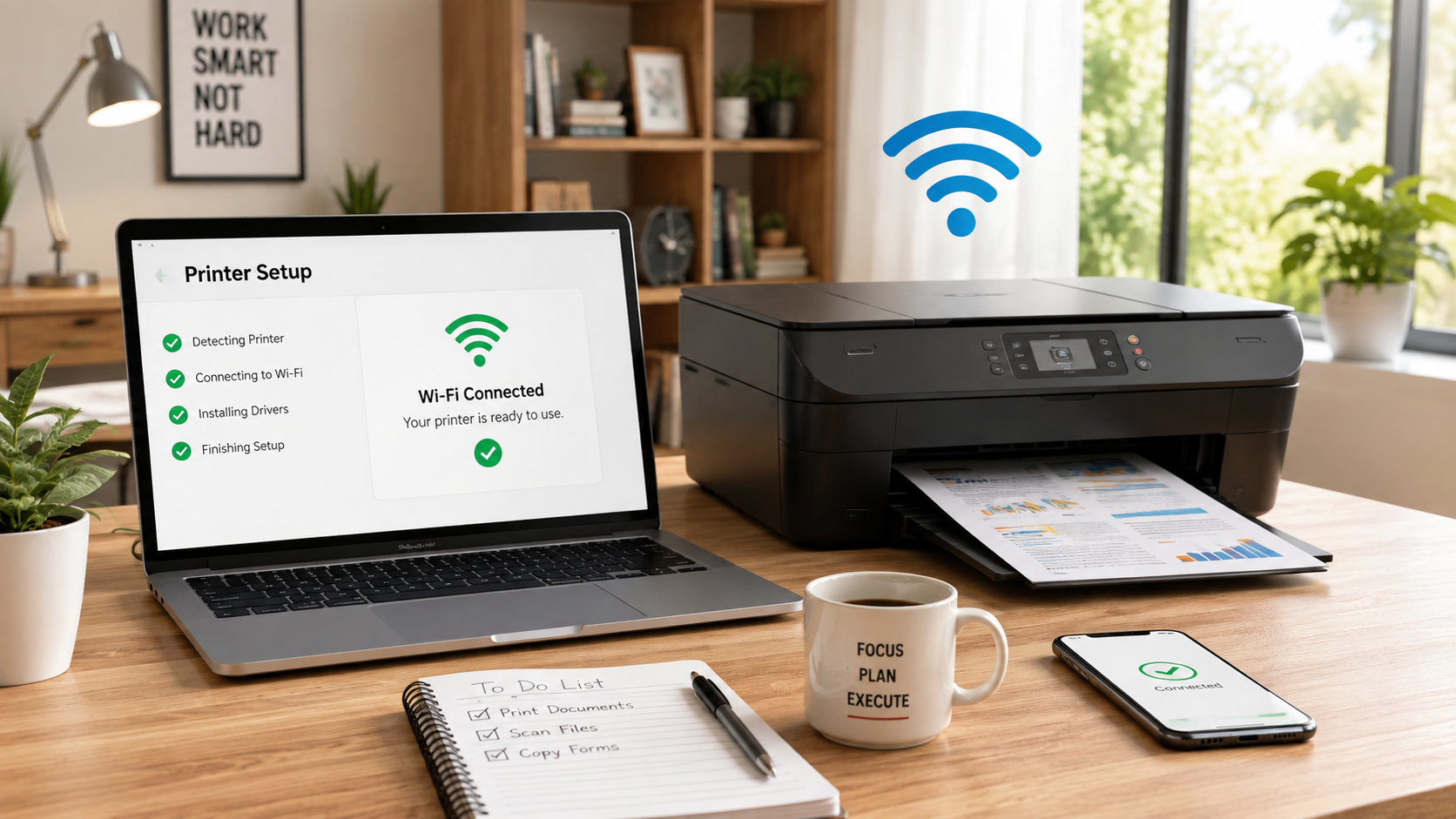
Wireless Printer Setup is simple when you follow the correct steps. Whether you’re installing a new printer or reconnecting it to your Wi-Fi network, this guide will help you complete the setup quickly. Setting up a wireless printer can seem confusing, especially if you’re doing it for the first time. Whether you’ve purchased a new printer or changed your Wi-Fi network, connecting your printer correctly ensures smooth and hassle-free printing from your computer, laptop, or smartphone.
In this guide, you’ll learn how to connect a wireless printer to Wi-Fi using simple step-by-step instructions that work for most modern printers.
Why Connect Your Printer to Wi-Fi?
A wireless printer offers several advantages over a USB-connected printer:
- Print from anywhere in your home or office.
- Connect multiple devices to one printer.
- No need for USB cables.
- Easy printing from smartphones and tablets.
- Cleaner and more organized workspace.
Things You’ll Need Before You Start
Before beginning the wireless printer setup, make sure you have:
- Your Wi-Fi network name (SSID)
- Wi-Fi password
- Printer turned on
- Computer or smartphone connected to the same Wi-Fi network
- Latest printer software (recommended)
Step 1: Turn On Your Printer
Switch on your printer and wait until it finishes its startup process.
If this is your first setup, remove all packaging materials and install the ink cartridges according to the manufacturer’s instructions.
Step 2: Access the Wireless Setup Menu
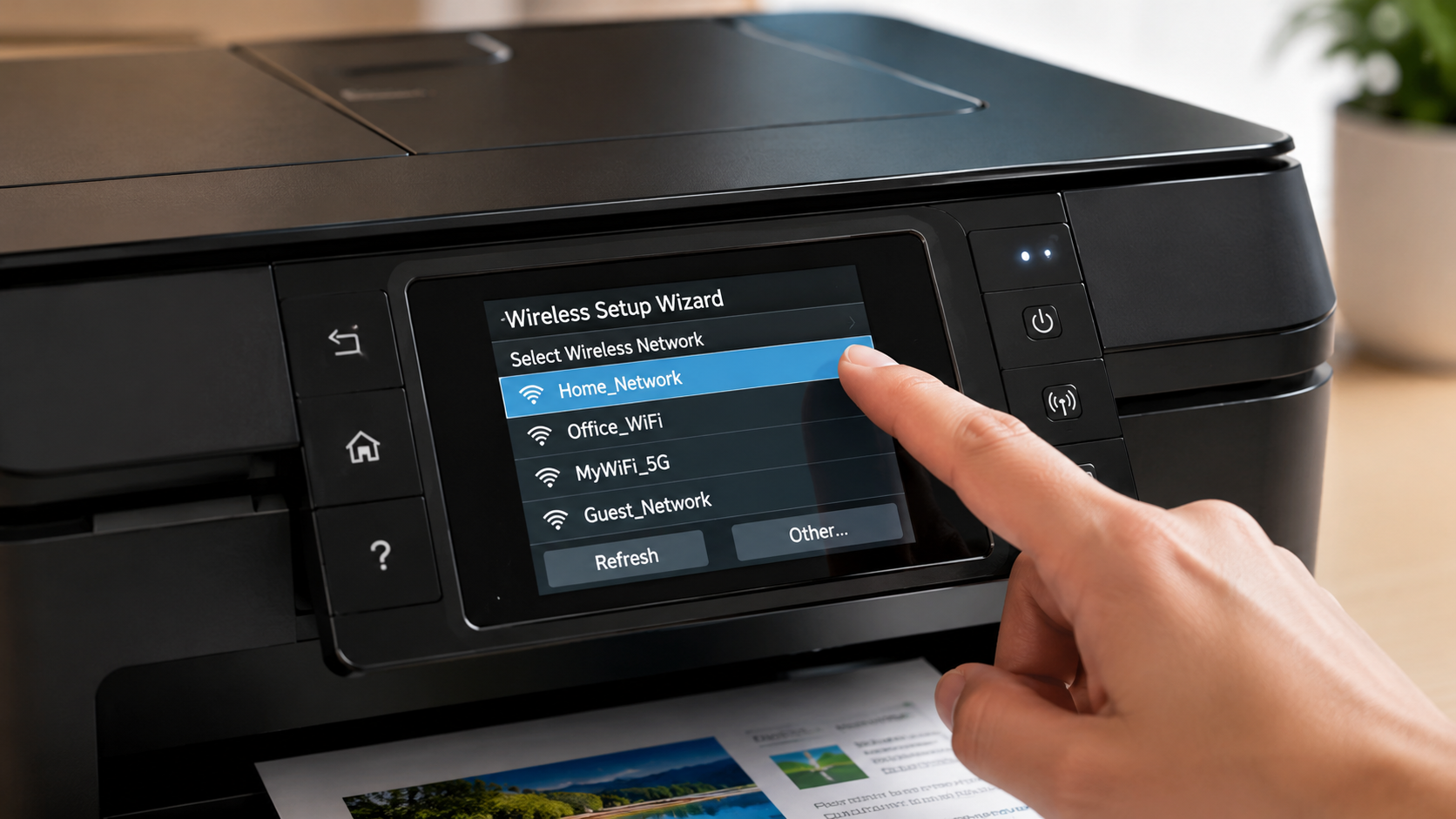
Most wireless printers include a display screen.
Navigate to:
Settings → Network → Wireless Settings → Wireless Setup Wizard
Select your Wi-Fi network from the list.
Step 3: Enter Your Wi-Fi Password
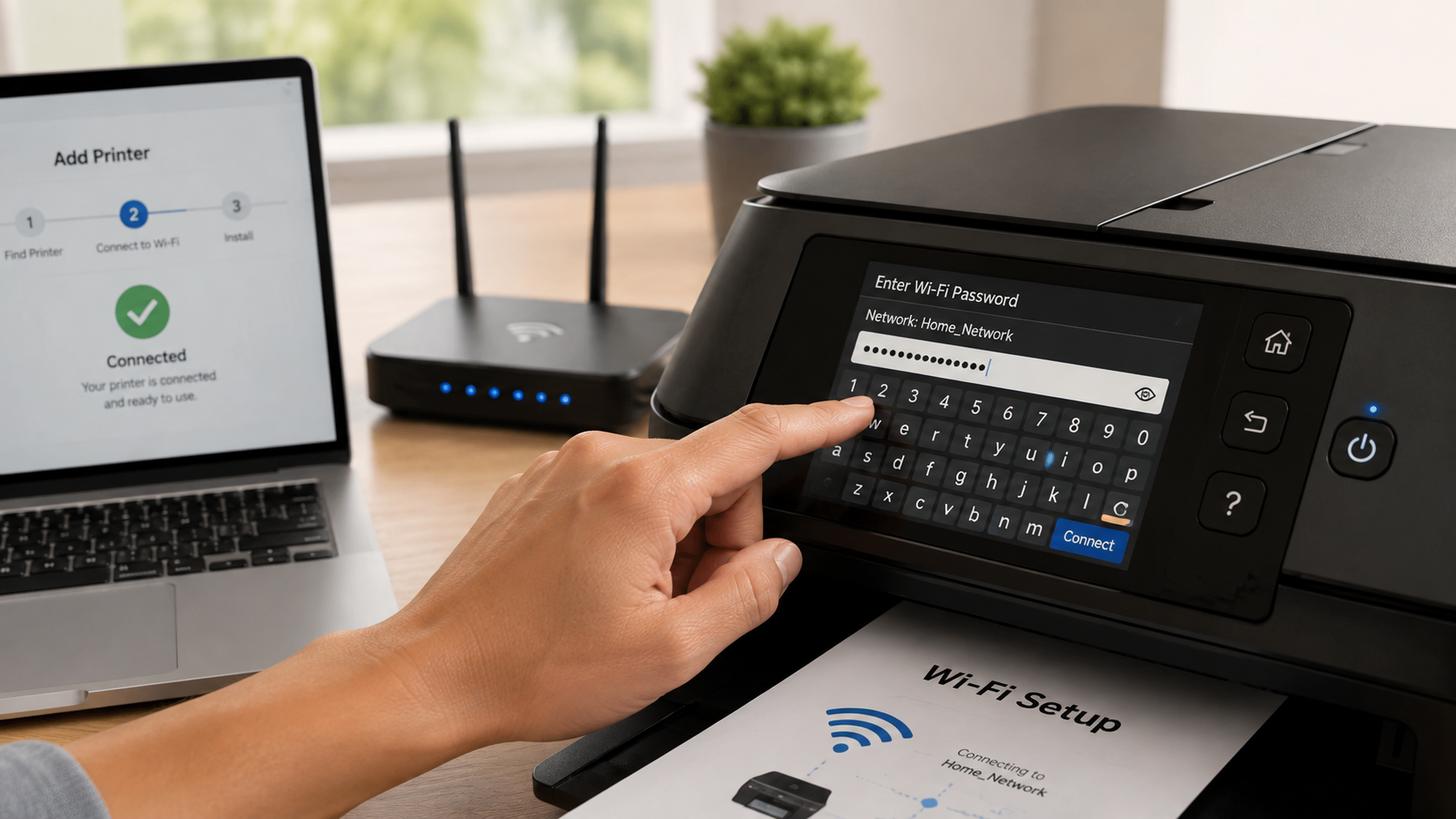
Enter your wireless password carefully.
Tips:
- Passwords are case-sensitive.
- Double-check every character.
- Avoid extra spaces.
After entering the password, select Connect.
Step 4: Wait for the Connection
The printer may take a few moments to connect.
Once connected successfully, you’ll usually see:
- Connected
- Wireless Connected
- Wi-Fi Connected
Some printers also display a Wi-Fi icon.
Step 5: Install Printer Software
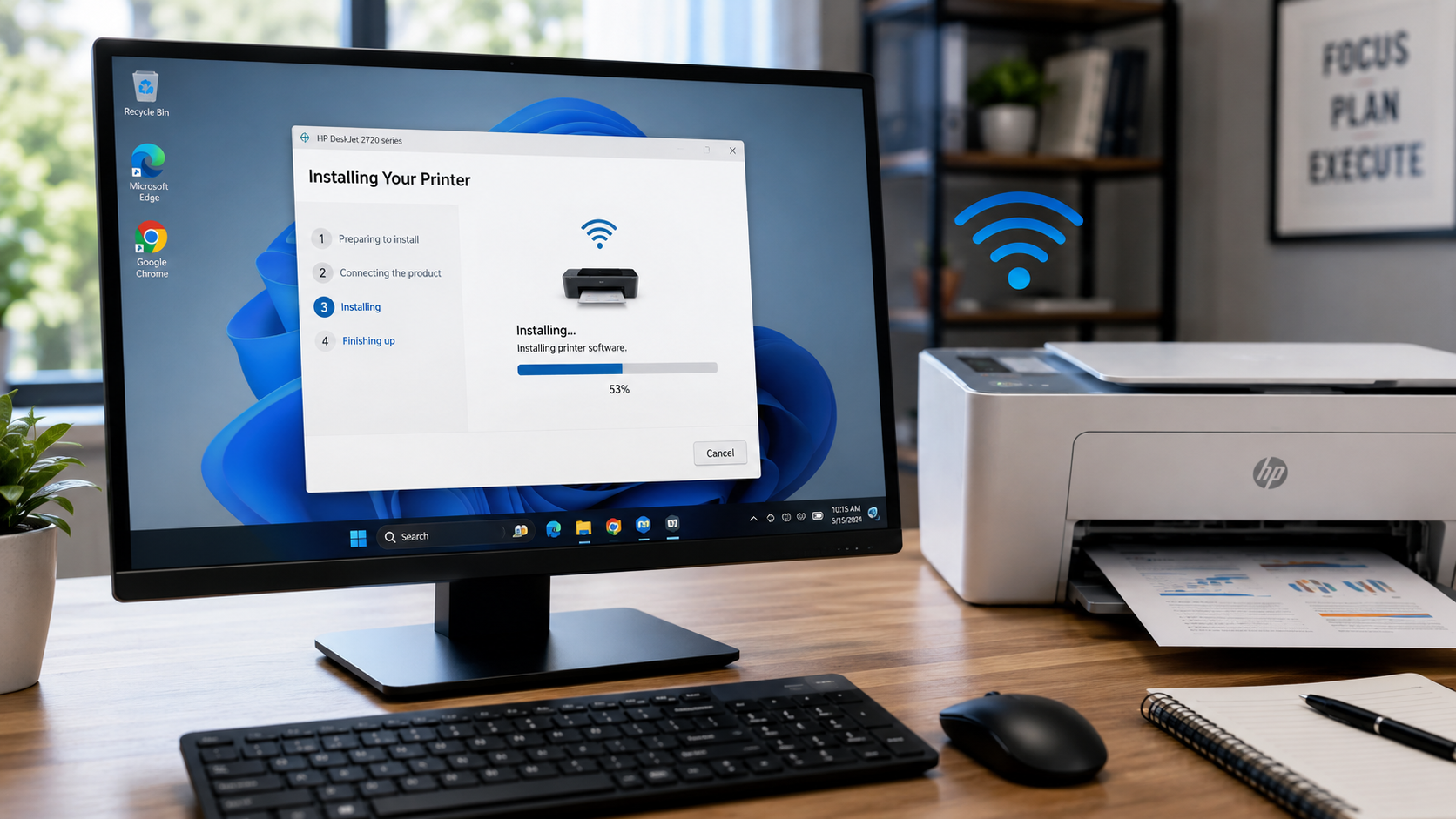
Download and install the latest printer software from your printer manufacturer’s official website.
The installation wizard usually detects the printer automatically.
Follow the on-screen instructions until installation is complete.
Download the latest printer drivers from your printer manufacturer’s official support website.
- HP: HP Support
- Canon: Canon Support
- Epson: Epson Support
- Brother: Brother Support
Step 6: Print a Test Page
After installation:
- Open Printer Settings.
- Select your printer.
- Click Print Test Page.
If the page prints successfully, your wireless printer setup is complete.
Common Wireless Printer Problems
Sometimes the printer doesn’t connect immediately.
Common reasons include:
- Incorrect Wi-Fi password
- Weak Wi-Fi signal
- Printer too far from the router
- Router restarted
- Printer firmware needs updating
How to Fix Wireless Printer Connection Issues
Try these solutions:
- Restart your printer.
- Restart your Wi-Fi router.
- Move the printer closer to the router.
- Re-enter the Wi-Fi password.
- Update the printer driver.
- Remove and reconnect the printer.
Tips for Better Wireless Printing
- Keep your printer near the Wi-Fi router.
- Use a stable internet connection.
- Update printer firmware regularly.
- Restart your printer occasionally.
- Avoid frequent Wi-Fi network changes.
Frequently Asked Questions
Why won’t my wireless printer connect to Wi-Fi?
Usually because of an incorrect Wi-Fi password, weak signal, or outdated printer software.
Can I connect my printer without a USB cable?
Yes. Most modern wireless printers support direct Wi-Fi setup without using a USB cable.
Do I need the internet to print?
No. If your printer and device are connected to the same local Wi-Fi network, internet access is not always required.
Additional Tips for a Successful Wireless Printer Setup
To ensure a smooth Wireless Printer Setup, keep these best practices in mind:
- Place the printer within range of your Wi-Fi router.
- Keep your printer firmware updated.
- Use a strong and stable Wi-Fi connection.
- Avoid interrupting the setup process while the printer is connecting.
- Restart your printer and router if the setup fails on the first attempt.
Following these tips can help prevent future connection issues and improve overall printing performance.
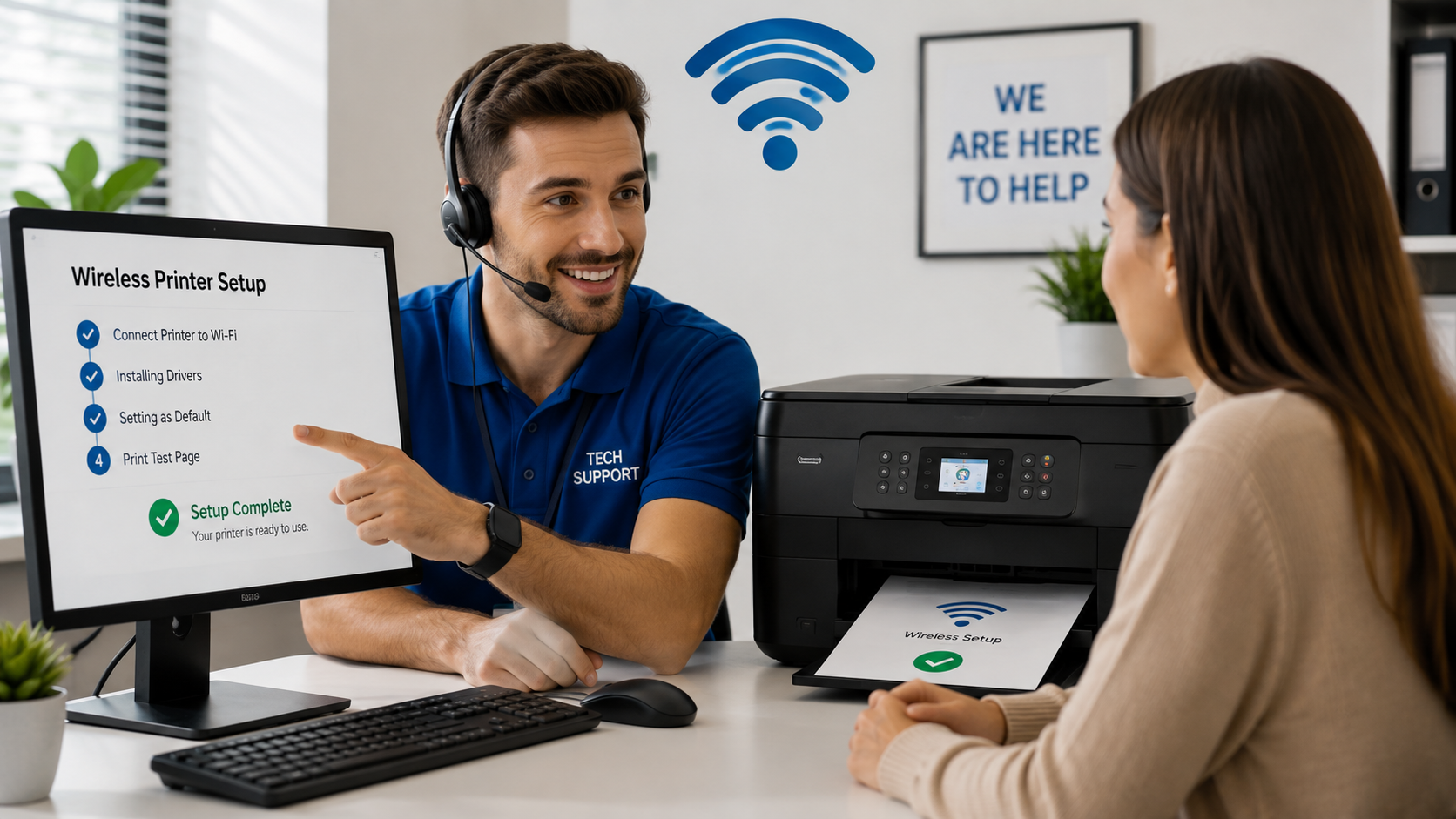
If your printer still won’t connect after completing the Wireless Printer Setup, read our Printer Is Offline? How to Fix It (Step-by-Step Guide) for more troubleshooting tips. Need expert assistance? Visit our Printer Support Services page for professional help.
Final Thoughts
Setting up a wireless printer is simple once you follow the correct steps. By connecting your printer to Wi-Fi, you can print conveniently from multiple devices without cables.
If you’re still experiencing connection problems after following this guide, professional troubleshooting may help resolve the issue quickly.