
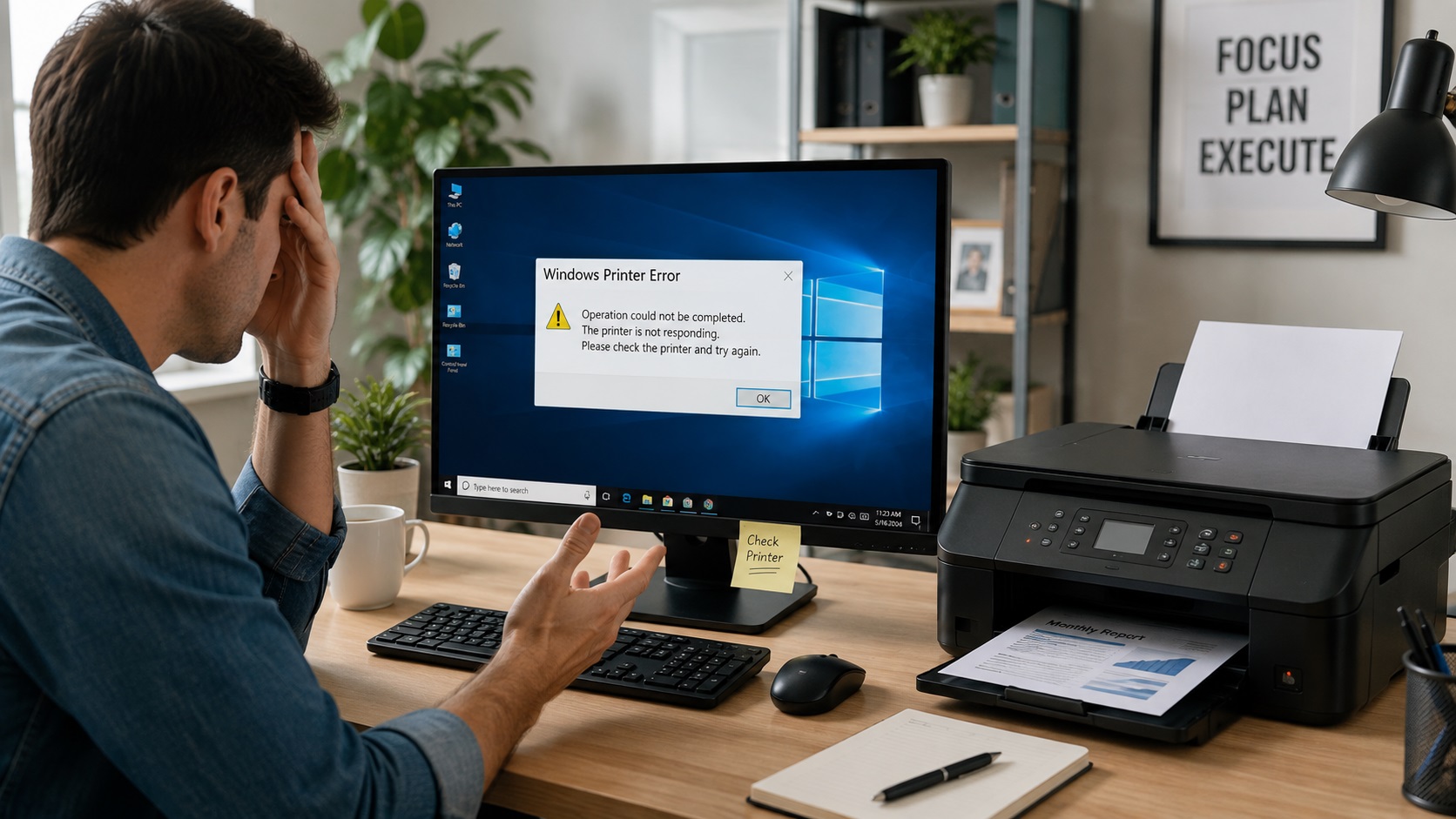
Printer Not Printing is one of the most common problems faced by home users and businesses. Whether you’re using a wireless or USB printer, printing issues can happen due to connection problems, outdated drivers, paper jams, or incorrect printer settings.
In this guide, we’ll explain 12 easy fixes to help you get your printer working again quickly. If your Printer Not Printing issue continues after these basic checks, follow the troubleshooting steps below to identify and fix the problem.
Why Is My Printer Not Printing?
There are several reasons why your printer may stop printing, including:
- Printer is offline
- Paper jam
- Empty ink or toner cartridges
- Poor Wi-Fi connection
- Outdated printer driver
- Incorrect printer settings
- Print queue stuck
- Hardware problems
Fix 1: Check the Printer Power
Ensure your printer is turned on and connected to a power source. Look for warning lights or error messages before trying to print again.
Fix 2: Check Paper and Ink Levels
Open the printer and make sure:
- Paper is loaded correctly.
- Ink or toner cartridges are not empty.
- There are no paper jams.
Replace cartridges if necessary.
Fix 3: Restart Your Printer and Computer
Turn off your printer and computer.
Wait about 30 seconds before turning them back on. This simple restart often resolves temporary printing issues.
Fix 4: Check the Printer Connection
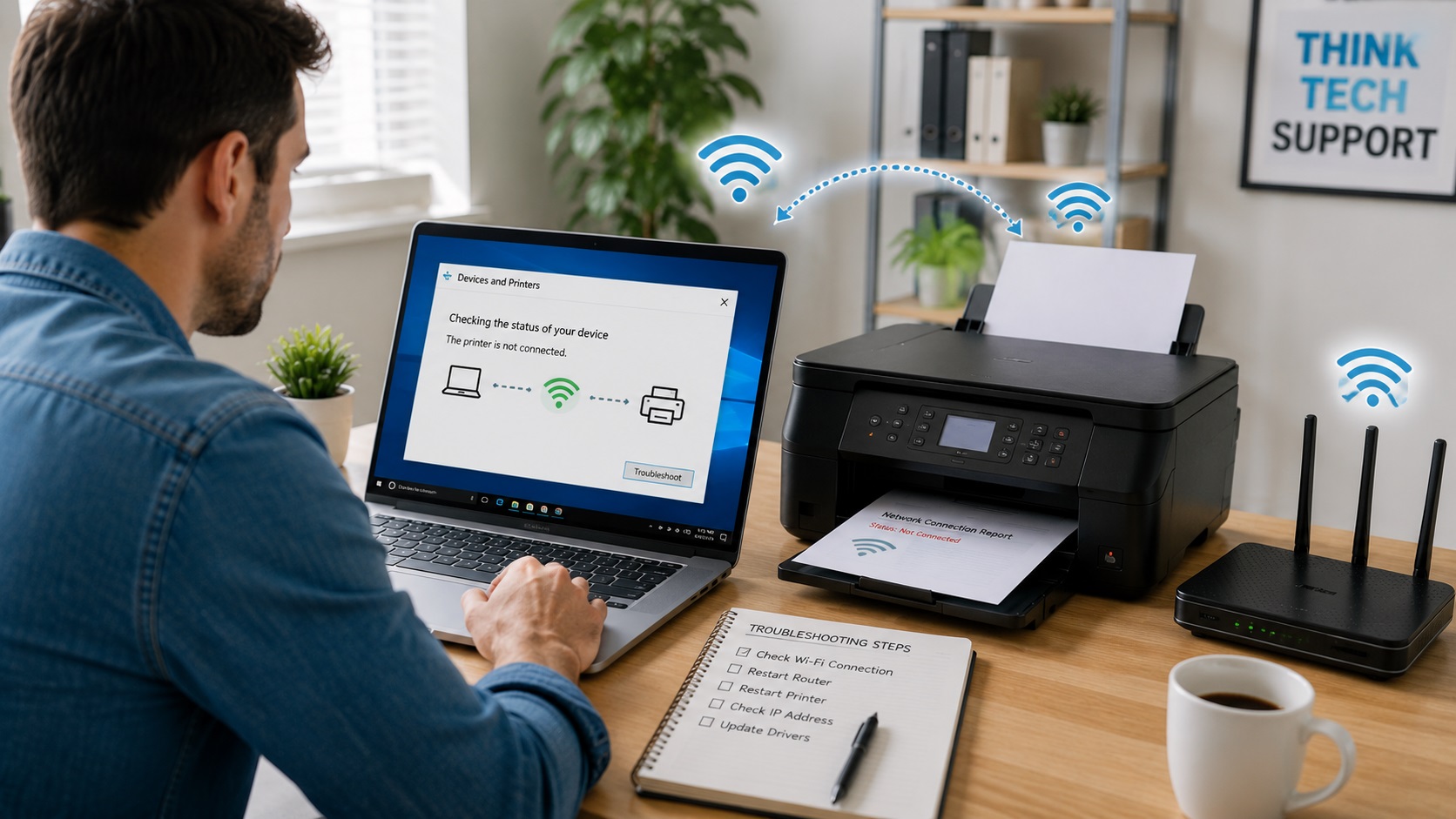
For wireless printers:
- Make sure the printer is connected to the correct Wi-Fi network.
- Restart your Wi-Fi router if needed.
For USB printers:
- Reconnect the USB cable.
- Try another USB port.
Fix 5: Set the Printer as Default
On Windows:
Settings → Bluetooth & devices → Printers & scanners
Choose your printer and click Set as Default.
Fix 6: Clear the Print Queue
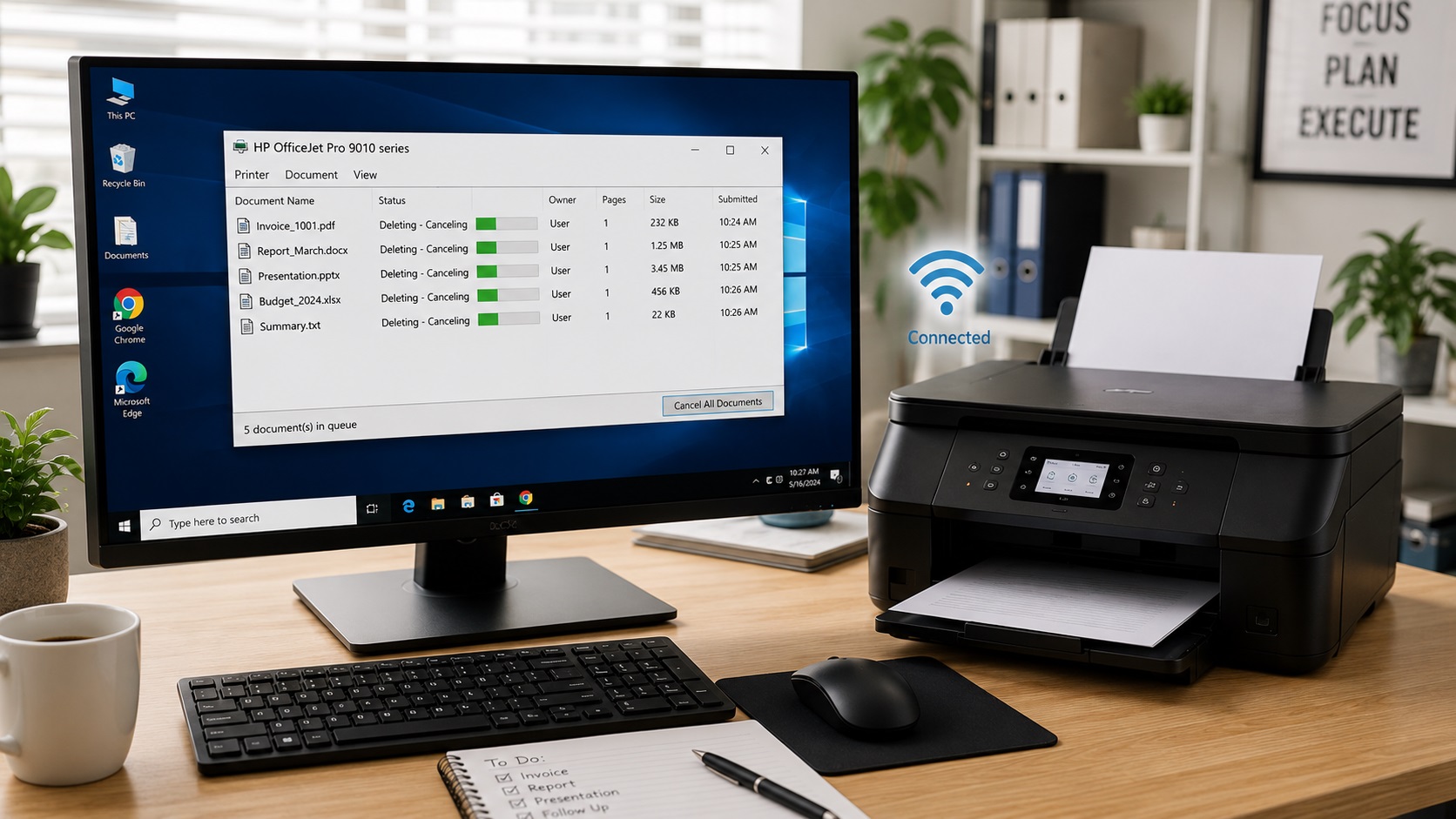
Pending print jobs can block new print requests.
Open the print queue and cancel all pending documents before trying again.
Fix 7: Update or Reinstall the Printer Driver
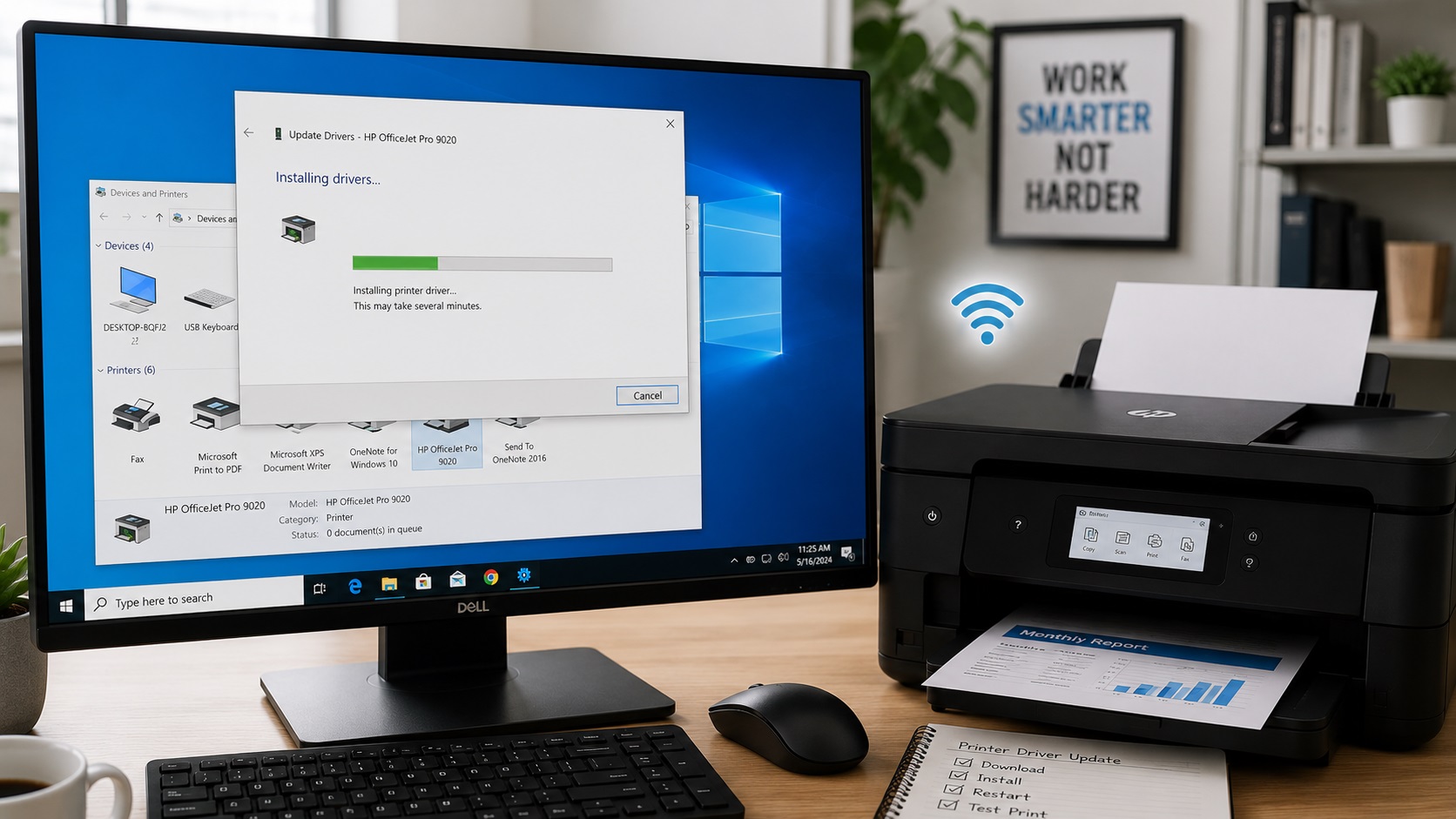
An outdated driver may prevent your printer from printing.
Download the latest driver from your printer manufacturer’s official website and install it.
Download the latest printer drivers from your printer manufacturer’s official support website.
- HP: HP Support
- Canon: Canon Support
- Epson: Epson Support
- Brother: Brother Support
Fix 8: Disable “Use Printer Offline”
Open your printer queue.
Click:
Printer → Uncheck Use Printer Offline
This setting often causes printing problems.
Fix 9: Run the Windows Printer Troubleshooter
Windows includes a built-in printer troubleshooter.
Go to:
Settings → System → Troubleshoot → Other troubleshooters → Printer
Run the troubleshooter and follow the instructions.
Fix 10: Restart the Print Spooler Service
Open Services in Windows.
Find Print Spooler.
Right-click it and select Restart.
Fix 11: Update Windows
Sometimes Windows updates include important printer fixes.
Go to:
Settings → Windows Update
Install all available updates.
Fix 12: Contact Professional Printer Support
If none of the above solutions work, the issue may require advanced troubleshooting.
Professional printer support can quickly identify software or hardware problems.
Additional Tips
To avoid future printing problems:
- Keep printer drivers updated.
- Use genuine ink cartridges.
- Keep your printer clean.
- Restart the printer occasionally.
- Maintain a stable Wi-Fi connection.
These simple habits help reduce printing issues and improve printer performance. Regular maintenance can prevent Printer Not Printing problems and improve your printer’s overall performance.
Frequently Asked Questions
H3: Why is my printer connected but not printing?
The issue may be caused by a stuck print queue, outdated drivers, or incorrect printer settings.
Why does my wireless printer stop printing?
Weak Wi-Fi signals, network interruptions, or incorrect printer settings can interrupt wireless printing.
How do I reset my printer?
Most printers can be reset from the Settings menu or by holding the Power button for several seconds. Refer to your printer’s user manual for model-specific instructions.
Related Articles
If your printer shows an offline error, read our Printer Is Offline? How to Fix It (Step-by-Step Guide).
If you’re setting up a new printer, read our How to Connect a Wireless Printer to Wi-Fi (Step-by-Step Guide).
Final Thoughts
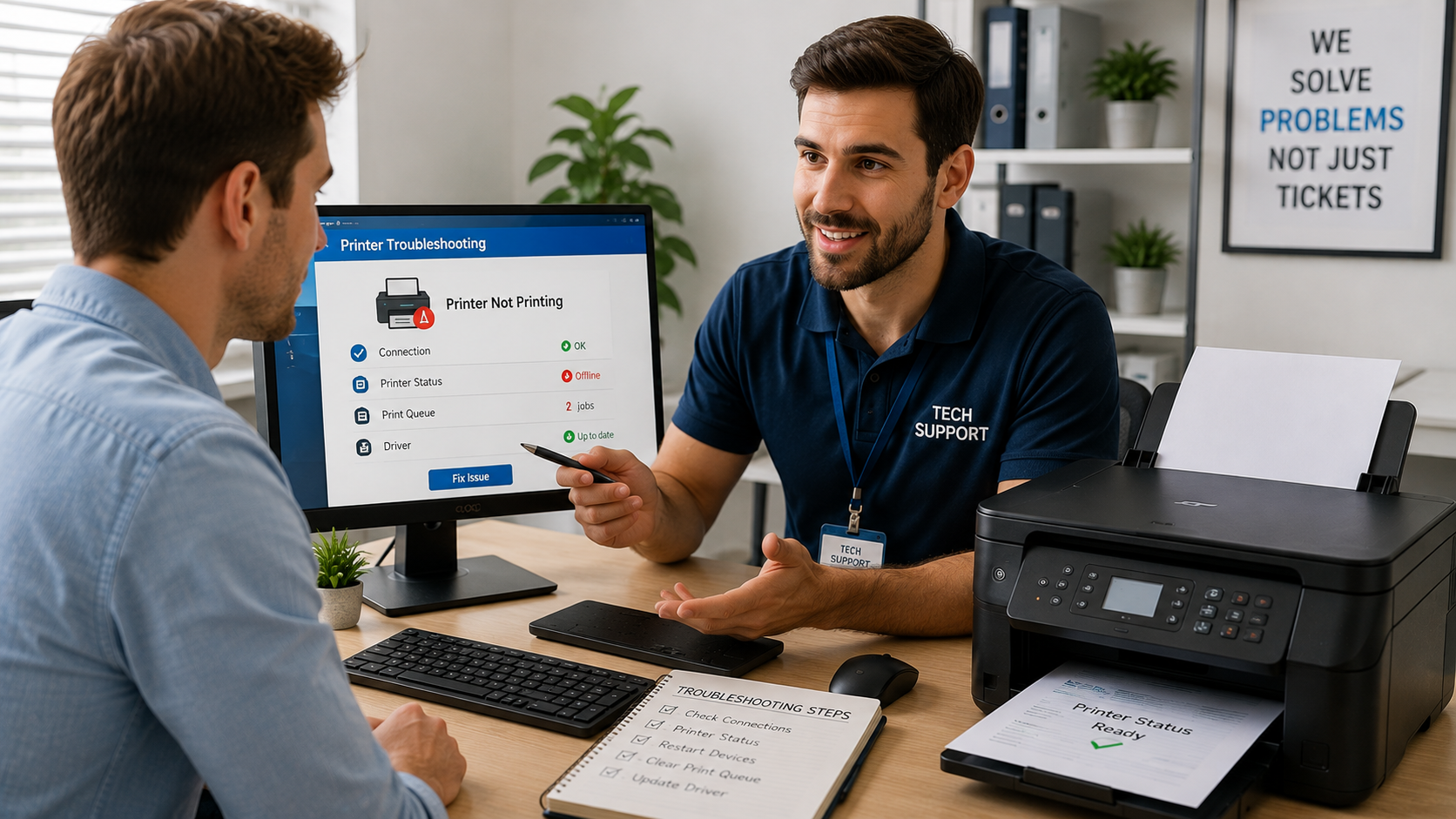
Printer Not Printing problems are usually easy to fix when you follow the correct troubleshooting steps. By checking your printer connection, clearing the print queue, updating drivers, and verifying printer settings, you can solve most Printer Not Printing issues without professional assistance. If the problem continues, seeking expert printer support can help restore your printer quickly.
Pingback: 7 Easy Ways to Fix Printer Driver Problems