
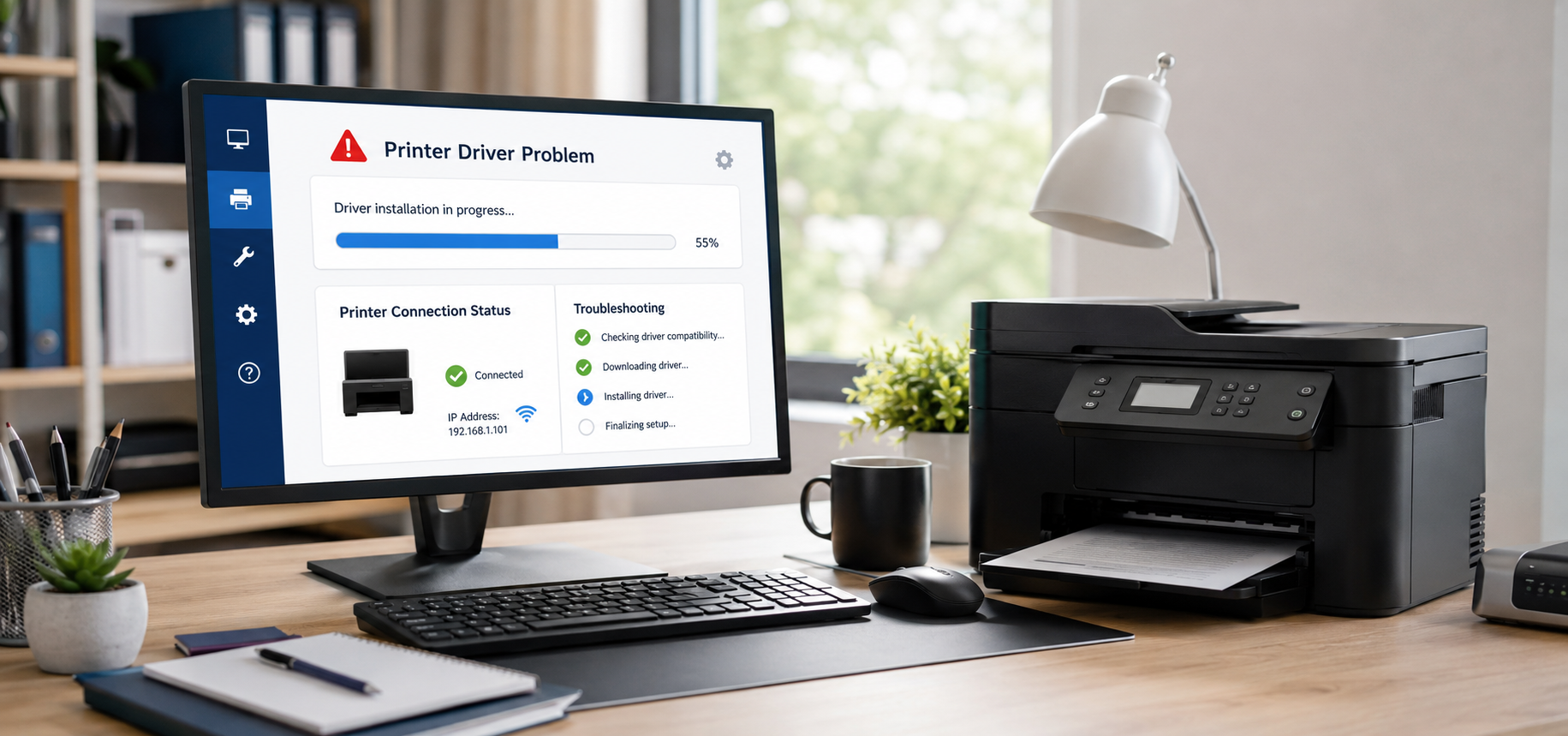
Printer drivers play an important role in allowing your computer and printer to communicate with each other. When the driver is missing, outdated, corrupted, or incompatible, your printer may stop working correctly.
You may experience problems such as the printer not being detected, print jobs failing, incorrect printing, poor communication between the computer and printer, or repeated driver errors.
Fortunately, many printer driver problems can be resolved with a few troubleshooting steps. In this guide, we’ll explain how to identify and fix common printer driver issues.
Printer driver problems can occur when a driver is outdated, corrupted, missing, or incompatible with your operating system.
What Is a Printer Driver?
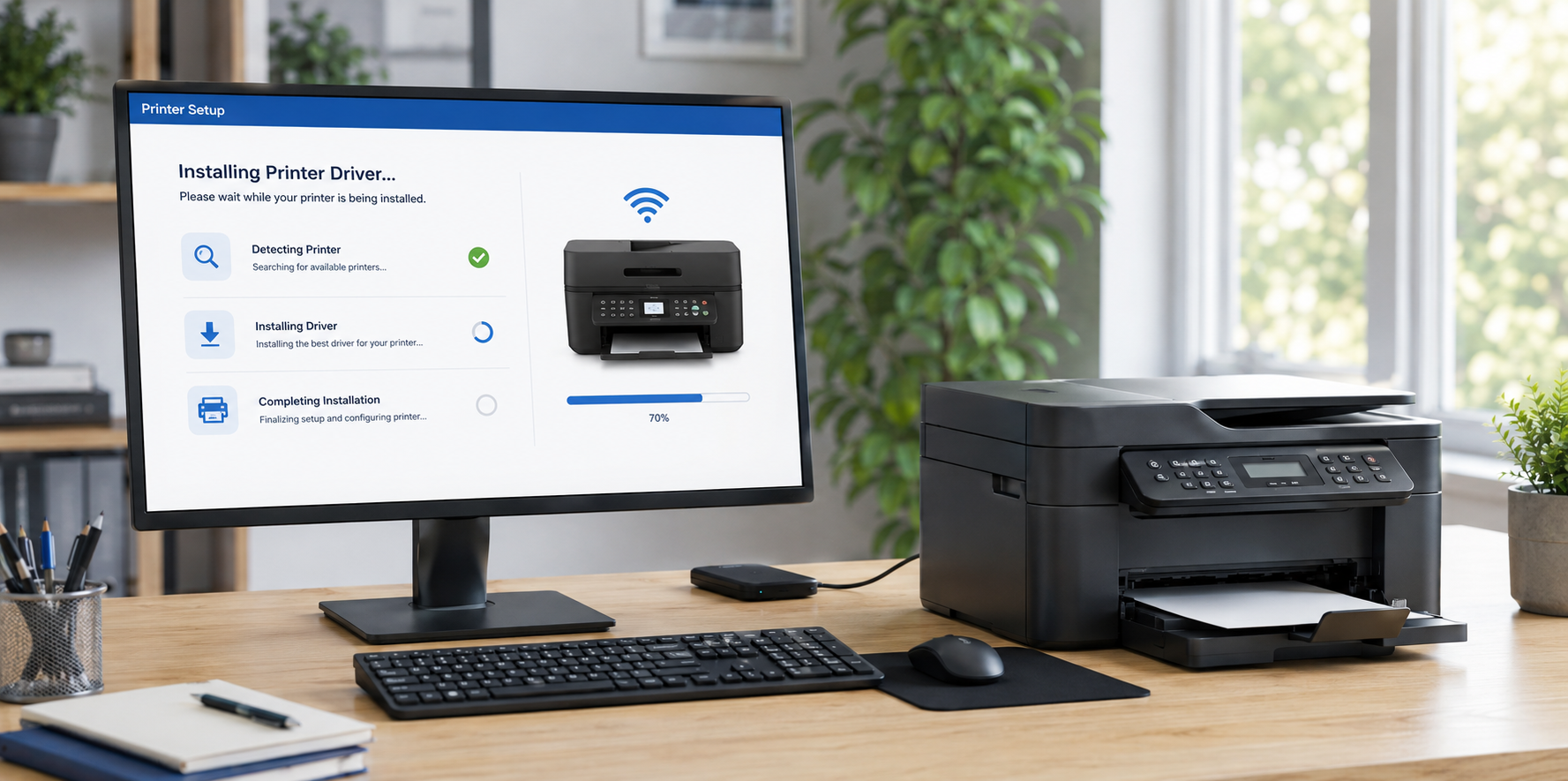
A printer driver is software that allows your computer’s operating system to communicate with your printer.
When you send a document to print, the driver helps the computer understand how the printer should process the document.
Without the correct driver, your computer may not be able to communicate properly with the printer.
Common Signs of a Printer Driver Problem
A driver problem can cause different symptoms depending on your printer and computer.
Some common signs include:
- The computer cannot detect the printer.
- The printer appears but cannot be selected.
- Print jobs remain stuck.
- Documents fail to print.
- The printer shows an error after installation.
- Printing works incorrectly after a system update.
- The printer software cannot communicate with the device.
- A previously working printer suddenly stops responding.
If your printer worked correctly before a Windows or software update, a driver compatibility problem may be worth checking.Identifying the symptoms of printer driver problems can help you determine whether the driver needs to be updated or reinstalled.
1. Restart Your Computer and Printer
Before reinstalling or changing anything, restart both devices.
Turn off the printer and wait a few seconds. Then turn it back on and restart your computer.
After both devices restart, try printing a test document.
Temporary communication problems can sometimes make a printer appear to have a driver problem when the driver itself is working correctly.
2. Check Whether the Printer Is Detected
Open your computer’s printer settings and check whether your printer appears in the list of available devices.
If the printer is missing completely, the problem could involve:
- A missing driver
- A connection problem
- Incorrect printer installation
- A USB communication issue
- A wireless network problem
Make sure the printer is powered on and properly connected before continuing with driver troubleshooting.
3. Update the Printer Driver
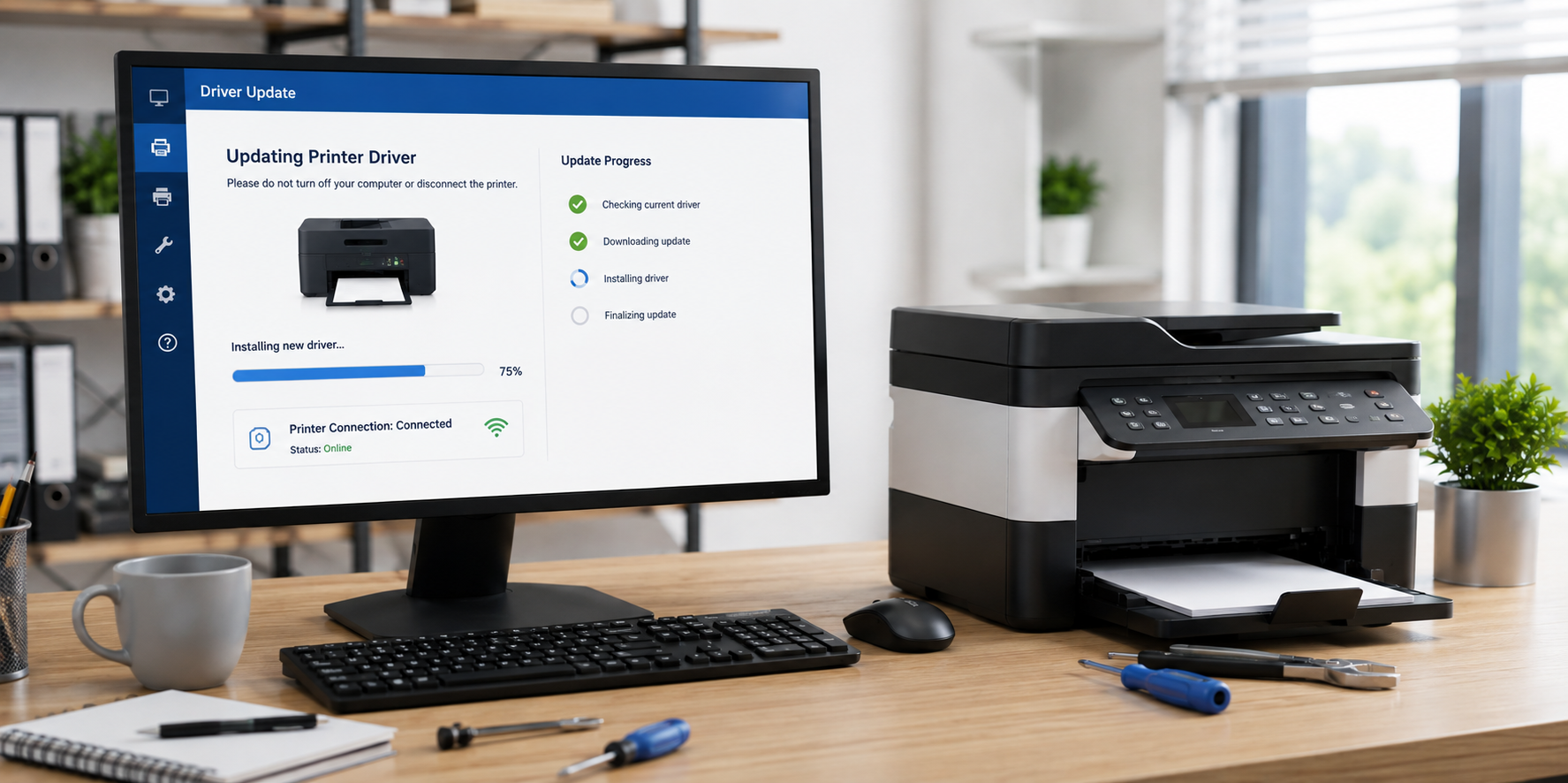
An outdated printer driver may not work correctly with newer operating-system updates.
Check for the latest driver that is compatible with your printer model and operating system.
When downloading a driver, make sure you select the exact printer model. Installing a driver intended for a different model may create additional problems.
It is best to obtain printer drivers from a trusted source, such as the printer manufacturer’s official support website. Updating the printer driver is one of the most effective ways to resolve printer driver problems caused by outdated software.
4. Reinstall the Printer Driver
If updating the driver does not solve the problem, reinstalling it may help.
A driver installation can become corrupted because of interrupted updates, software conflicts, or system changes.
A typical reinstall process involves:
- Removing the existing printer from your computer.
- Removing the associated printer software or driver if necessary.
- Restarting the computer.
- Downloading the correct driver.
- Installing the driver again.
- Reconnecting the printer.
- Printing a test page.
Follow the installation instructions provided with the driver. Reinstalling the driver can also fix printer driver problems caused by corrupted or incomplete installations.
Download the latest printer drivers from your printer manufacturer’s official support website.
- HP: HP Support
- Canon: Canon Support
- Epson: Epson Support
- Brother: Brother Support
5. Check for Windows Updates
Your operating system and printer driver need to work together.
If your computer recently received a major system update, check whether additional updates are available.
Keeping Windows and other system components updated can improve compatibility with printers and other devices.
However, if the printer stopped working immediately after an update, checking the printer manufacturer’s support information for a compatible driver may be particularly useful.
6. Remove Duplicate Printers
Sometimes multiple copies of the same printer can appear on your computer.
For example, you may see several versions of the same printer with names such as:
- Printer
- Printer (Copy 1)
- Printer (Copy 2)
- Printer Series
- Printer Series – Network
Having multiple entries can make it difficult to determine which printer your computer is actually using.
Remove unnecessary or duplicate printer entries and keep the correct installation.
7. Check the Printer Connection
A driver cannot communicate properly with a printer if the connection is interrupted.
For a USB printer, check that the USB cable is securely connected.
For a wireless printer, check that:
- The printer is connected to Wi-Fi.
- Your computer is connected to the appropriate network.
- The printer has not been moved to another network.
- The wireless signal is stable.
If the printer connection is working correctly but the computer still cannot communicate with it, driver troubleshooting may be the next step.
8. Check the Print Spooler Service
The Print Spooler is a Windows service responsible for managing print jobs.
If the Print Spooler is not working correctly, documents may remain stuck or fail to print.
Restarting the Print Spooler can sometimes resolve temporary printing problems.
If you are not familiar with Windows services, avoid changing unrelated system settings. Incorrect changes can cause additional problems.
9. Remove Old Printer Software
Old printer software can sometimes interfere with a newer driver installation.
If you’ve installed and removed the same printer several times, there may be older software or printer entries remaining on the computer.
Removing unnecessary printer software before performing a clean installation can help prevent conflicts.
Be careful when removing software and make sure you are removing printer-related components rather than important Windows components.
10. Print a Test Page
After installing or updating the driver, print a test page.
A successful test page confirms that the computer is communicating with the printer.
If the test page prints correctly but a specific application cannot print, the problem may be related to that application rather than the printer driver.
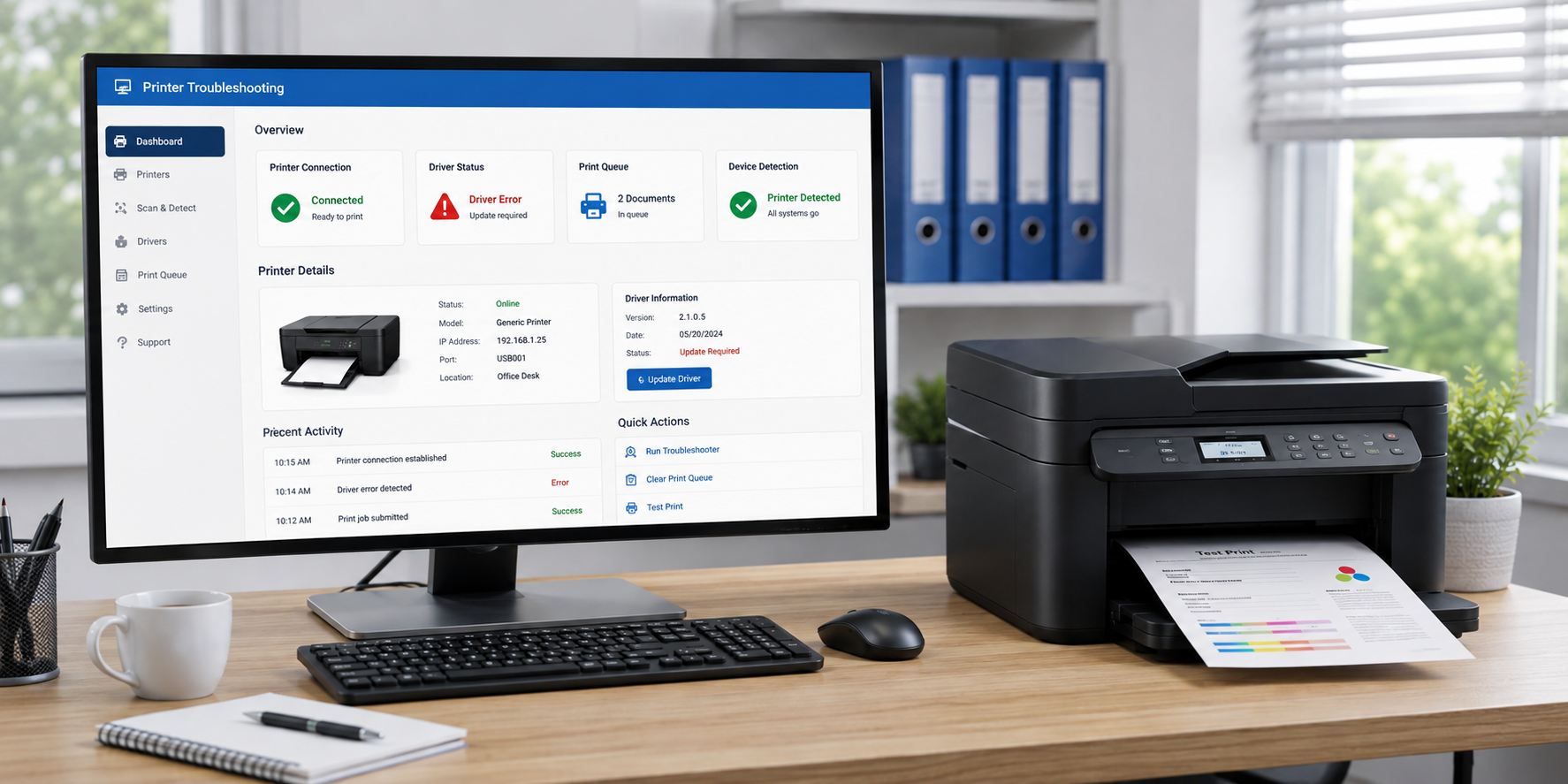
If your printer is connected but still won’t print, see our guide on Printer Not Printing for additional troubleshooting steps.
If your computer shows that the printer is offline, follow our guide on How to Fix a Printer Showing Offline.
When Should You Get Professional Printer Support?
Some printer driver problems can become difficult to diagnose, particularly when several issues occur at the same time.
You may want expert assistance if:
- The printer cannot be detected after driver installation.
- The correct driver repeatedly fails to install.
- The printer stops working after an operating-system update.
- Multiple printer drivers are conflicting.
- The printer works on another computer but not yours.
- You continue receiving driver or communication errors.
Professional online printer support can help identify whether the problem is related to the driver, printer settings, connection, software, or operating system. If these steps don’t resolve your printer driver problems, professional troubleshooting may help identify the underlying issue.
Final Thoughts
Printer driver problems can prevent your computer and printer from communicating properly, but they are often fixable with the right troubleshooting steps.
Start by restarting your devices and checking the printer connection. If the problem continues, update or reinstall the correct printer driver and remove unnecessary printer entries.
Always make sure you use a driver that matches your exact printer model and operating system.
If you’re still unable to print after troubleshooting, getting professional assistance can help you identify the underlying problem and get your printer working again.
Need help with a printer driver or installation problem? Online Printer Support provides online assistance for printer setup, driver installation, connection issues, and troubleshooting.