
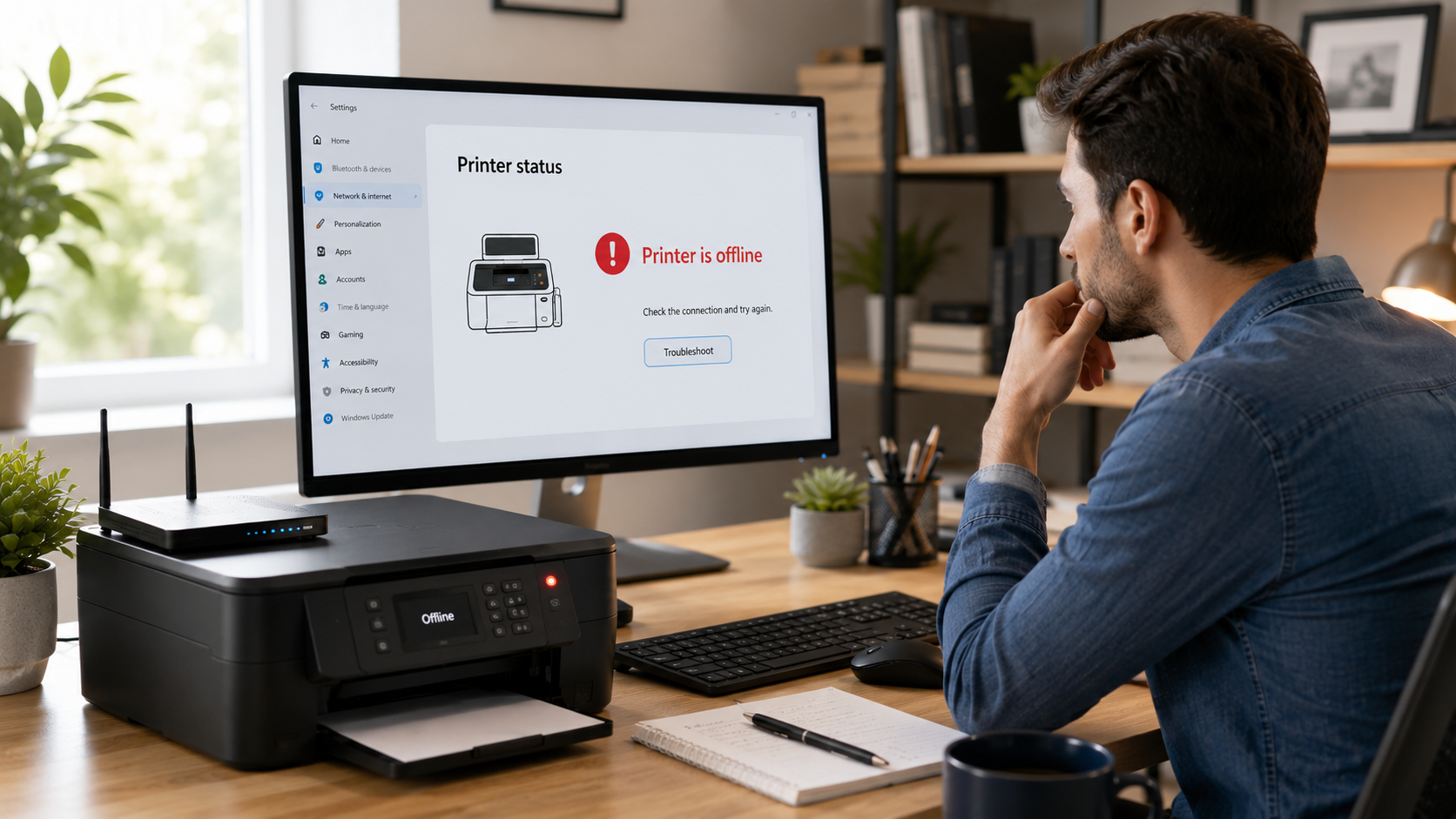
Printer Is Offline? If your printer is showing Offline and refusing to print, you’re not alone. This is one of the most common printer issues faced by both home users and businesses. Whether you’re using a wireless or USB printer, this problem can interrupt your work and be frustrating.
The good news is that most offline printer issues can be resolved in just a few minutes. In this guide, you’ll learn the most common reasons why a printer goes offline and the step-by-step solutions to bring it back online quickly. Many users search for Printer Is Offline when their printer suddenly stops printing.
Why Does a Printer Show Offline?
Your printer may appear offline for several reasons, including:
- Loose USB cable or disconnected Wi-Fi
- Printer powered off
- Wrong printer selected as the default printer
- “Use Printer Offline” enabled
- Stuck print jobs in the queue
- Outdated or corrupted printer drivers
- Network connection problems
Understanding the cause makes it much easier to solve the problem.
Step 1: Check That Your Printer Is Powered On
Before trying advanced troubleshooting, make sure your printer is turned on.
- Check the power cable.
- Verify there are no error lights.
- Make sure the printer has paper and enough ink or toner.
- If using USB, reconnect the cable securely.
Step 2: Restart Your Printer and Computer
Restarting clears temporary communication problems.
- Turn off the printer.
- Shut down your computer.
- Wait for 30 seconds.
- Turn the printer back on.
- Restart the computer.
- Print a test page.
Many offline printer problems are resolved with this simple step.
Step 3: Verify the Wi-Fi Connection
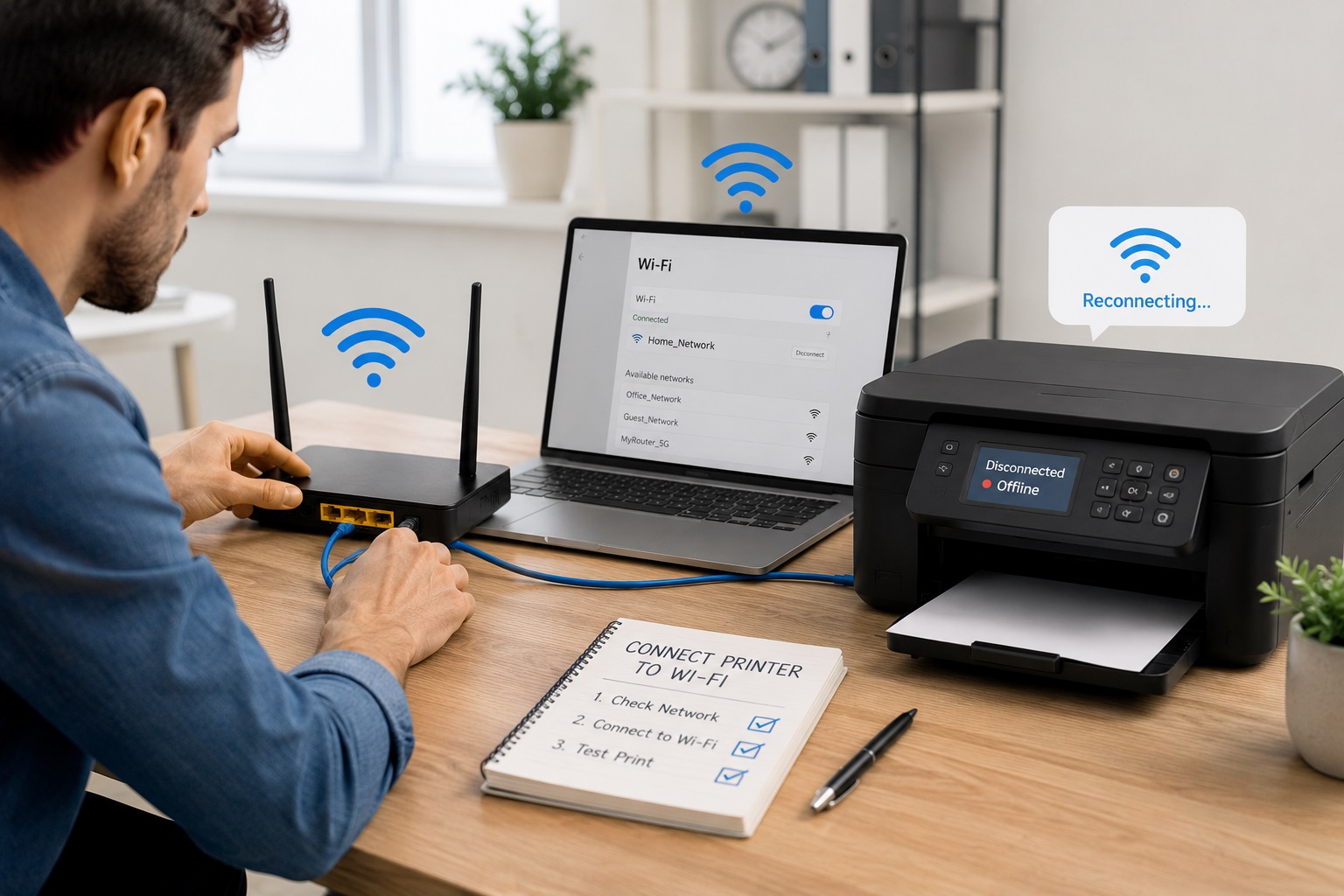
If you have a wireless printer:
- Ensure the printer is connected to your Wi-Fi network.
- Confirm your computer is connected to the same network.
- Restart your router if needed.
- Move the printer closer to the router if the signal is weak.
A weak or unstable connection often causes printers to appear offline.
Step 4: Set the Printer as the Default Printer
Windows may send print jobs to the wrong device.
Windows 11
- Open Settings
- Select Bluetooth & Devices
- Click Printers & Scanners
- Choose your printer
- Click Set as Default
Step 5: Disable “Use Printer Offline”
This setting can accidentally prevent printing.
- Open the printer queue.
- Click the Printer menu.
- Uncheck Use Printer Offline.
- Try printing again.
If you still see the Printer Is Offline message, continue with the next troubleshooting steps.
Step 6: Clear the Print Queue
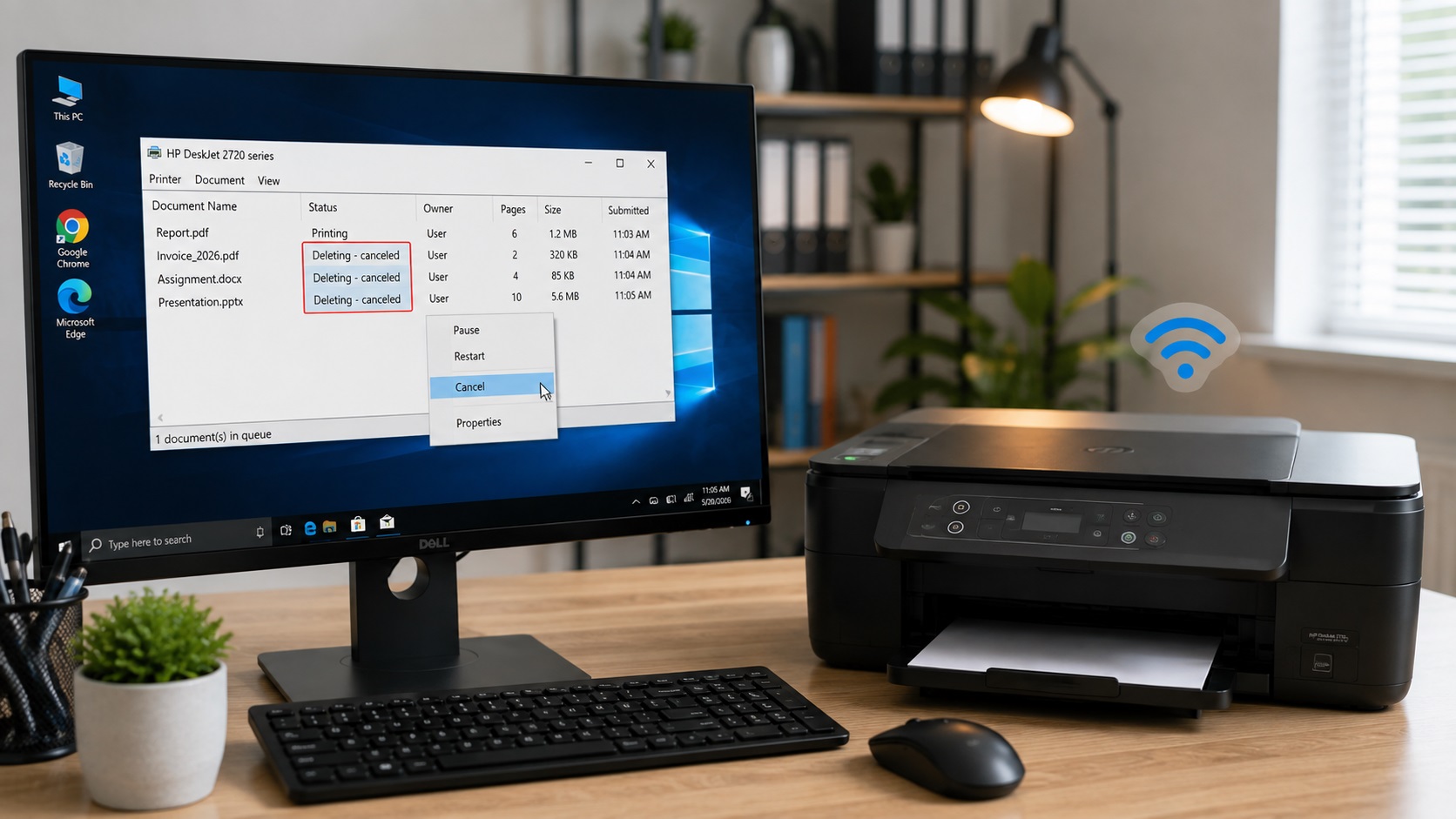
A stuck print job can stop all future print jobs.
- Open the printer queue.
- Cancel every pending job.
- Restart the printer.
- Send a new document to print.
Step 7: Update or Reinstall the Printer Driver
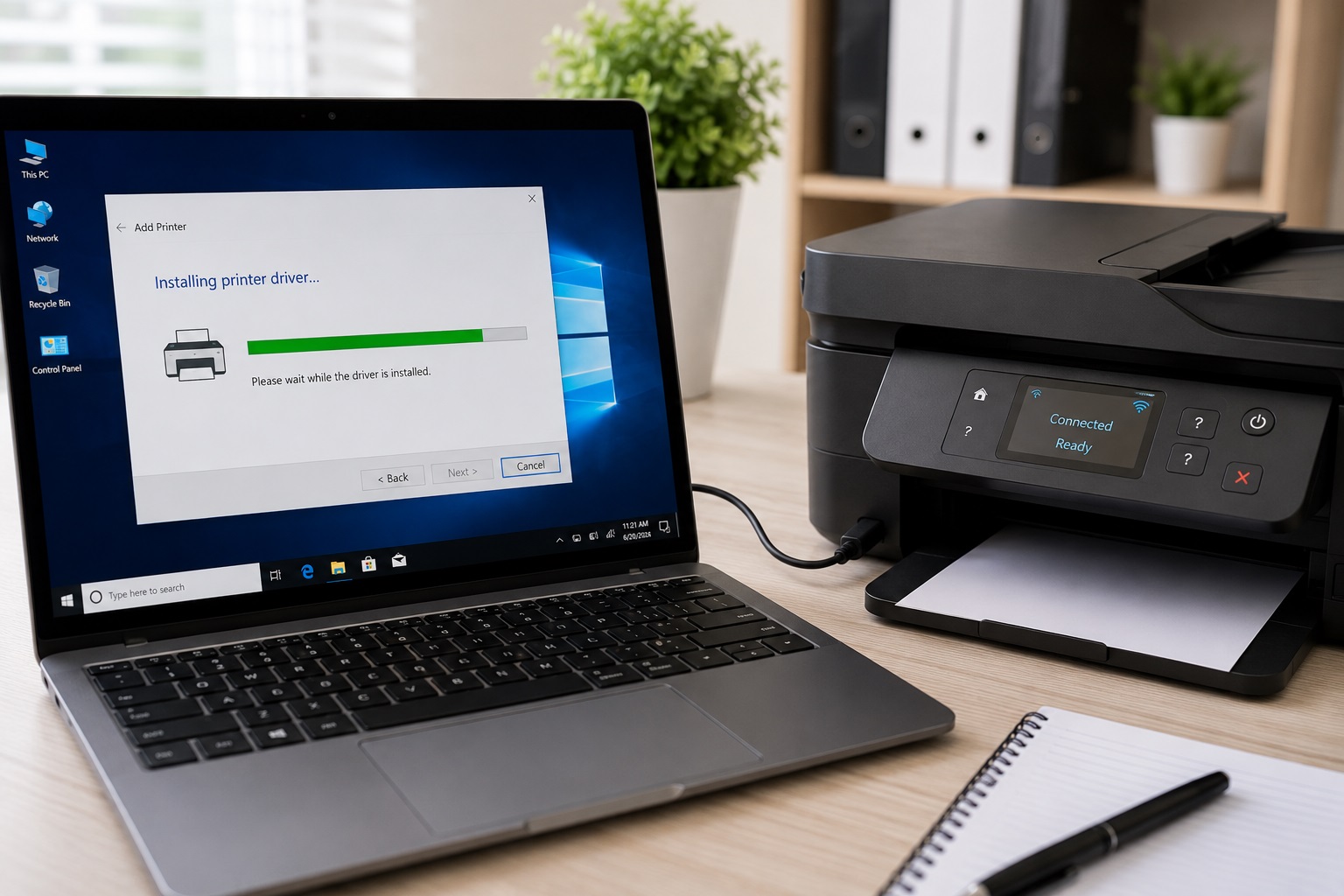
Printer drivers allow your computer to communicate with the printer.
If the driver is outdated or corrupted:
- Download the latest driver from the manufacturer’s official website.
- Install the new driver.
- Restart your computer.
- Test the printer.
Download the latest printer drivers from your printer manufacturer’s official support website.
- HP: HP Support
- Canon: Canon Support
- Epson: Epson Support
- Brother: Brother Support
Step 8: Run Windows Printer Troubleshooter
Windows includes a built-in troubleshooting tool.
- Open Settings
- Select System
- Click Troubleshoot
- Open Other Troubleshooters
- Run the Printer troubleshooter
Follow the on-screen instructions.
Step 9: Check Printer Status
Look for any warning messages on the printer display.
Examples include:
- Paper Jam
- Out of Paper
- Low Ink
- Cover Open
- Toner Empty
Resolve these issues before attempting to print.
Step 10: Restart the Print Spooler Service
Sometimes the Windows Print Spooler stops responding.
- Press Windows + R
- Type services.msc
- Find Print Spooler
- Right-click and choose Restart
Try printing again.
Common Reasons Your Printer Is Offline
The most common causes include:
- Network interruptions
- Driver issues
- Wrong printer settings
- Stuck print jobs
- Router problems
- USB connection problems
- Windows update conflicts
Tips to Prevent Printer Offline Problems
To reduce future issues:
- Keep printer drivers updated.
- Install Windows updates regularly.
- Use a stable Wi-Fi connection.
- Restart the printer occasionally.
- Clear old print jobs.
- Keep printer firmware updated.
- Avoid unplugging the printer while printing.
Frequently Asked Questions
Why is my printer showing offline?
This usually happens because of a network problem, outdated driver, incorrect printer settings, or a stuck print queue.
How do I bring my printer back online?
Restart the printer, check the connection, disable “Use Printer Offline,” clear the print queue, and update the printer driver.
Can Wi-Fi cause my printer to go offline?
Yes. If your printer loses its Wi-Fi connection or connects to a different network, it may appear offline.
Do I need to reinstall the printer?
Not always. Reinstalling should only be necessary if updating the driver or troubleshooting doesn’t solve the problem.
Final Thoughts
A printer showing Offline doesn’t always mean there’s a serious hardware problem. In most cases, checking the power, network connection, printer settings, and drivers is enough to restore normal printing.
By following the steps in this guide, you can resolve most offline printer issues without professional assistance. This guide is designed to help you fix the Printer Is Offline problem quickly and safely.
If the problem continues, it may require advanced troubleshooting related to drivers, firmware, or network configuration.
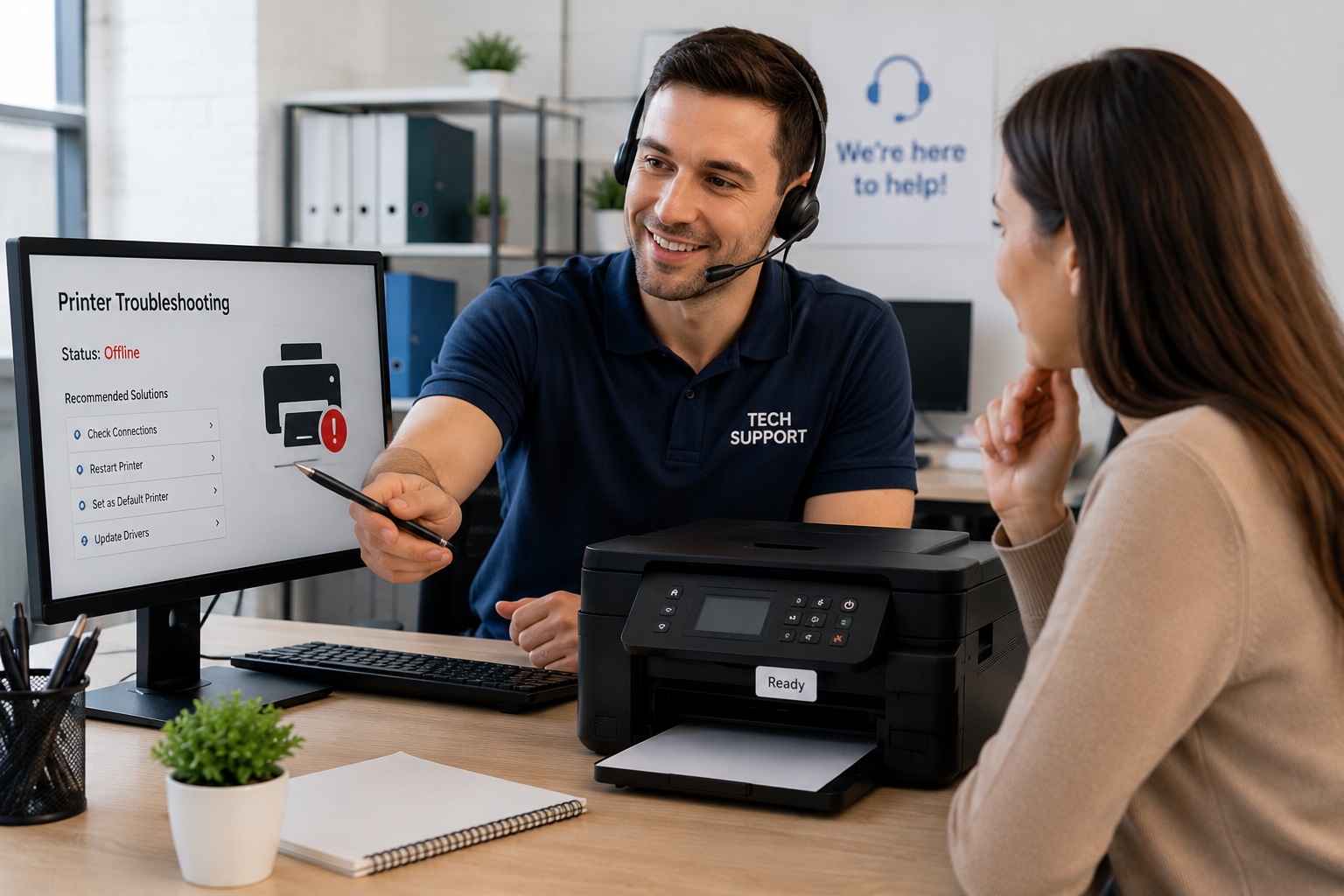
Need Professional Printer Support?
Still unable to get your printer back online? Our experienced support team can help with printer setup, installation, wireless connectivity, driver issues, printing errors, scanner problems, and other common printer troubleshooting needs. Contact us today for fast and reliable assistance.
Need additional help? Visit our Printer Support Services page.
Pingback: 7 Easy Ways to Fix Printer Driver Problems